MT7902: A Complete WiFi & Bluetooth Guide for Arch and Fedora
Introduction
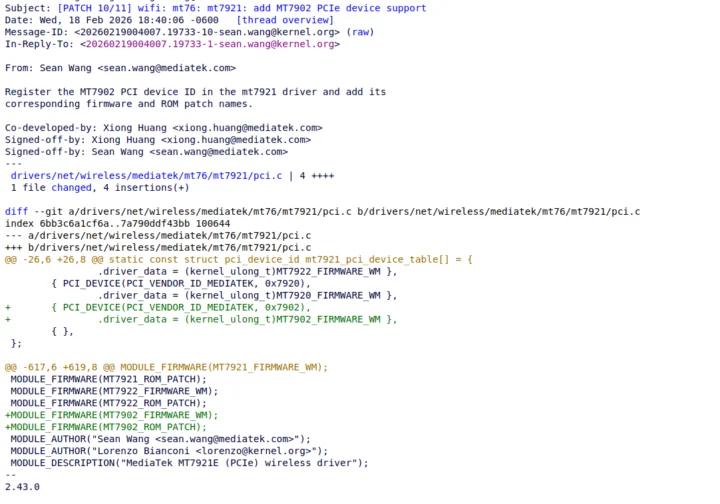 Figure: MT7902 Linux Patch
If you have a laptop (mine is Asus Vivobook go 15) with the MediaTek MT7902 network card, you already know the struggle for its driver support. Native support for this chip is missing from the mainline Linux kernel (at least until Linux 7.x drops). Out of the box, you get no WiFi and no Bluetooth in order to get your internet working either you have to go with external wifi adapter or USB tethering. But last month, we noted that Mediatek MT7902 WiFi 6E and Bluetooth 5.x chipset finally got drivers in mainline Linux, and should be part of the Linux 7.0 release. Fortunately, hmtheyboy154 backported the drivers that you can compile out-of-tree drivers to get your hardware fully operational for kernel 6.6 to 6.19. This guide will walk you through compiling the drivers on Arch and Fedora, blacklisting conflicting Bluetooth modules, and setting up DKMS so your network card doesn’t break every time you update your system.
 Figure: WiFi PCIe driver
Note: this method only works with the PCIe driver, so if you own an SDIO module, you’d need to work out another solution.
For Arch Users
Before proceeding futher with installation, your system needs some tools to compile the kernel modules, base developement tools, dkms(Dynamic Kernal Module Support) and kernel headers.
1
sudo pacman -S base-devel linux-headers git dkms
Note: If you use a custom kernel like linux-lts or linux-zen, make sure you install
linux-lts-headersorlinux-zen-headersinstead.
For Fedora Users
Before installing anything make sure to disable secure boot because if it is enabled in your BIOS, the Fedora kernel will silently reject custom-compiled drivers and kernel headers must perfectly match the kernel currently loaded in your RAM. Update the kernel, reboot your system and then install build tools.
1
2
sudo dnf upgrade kernel kernel-devel
sudo reboot
Install all the necessary packages
1
sudo dnf install @development-tools kernel-devel-$(uname -r) kernel-headers git dkms
Compiling WiFi Driver
- Clone the repo and compile the code.
1 2 3
git clone https://github.com/hmtheboy154/mt7902 cd mt7902 make - Install driver and firmware
1
2
sudo make install
sudo make install_fw
- After that, you could reboot your laptop, but I used modprobe instead to get it up and running and i am able to connect to my access point.
1
sudo modprobe mt7902e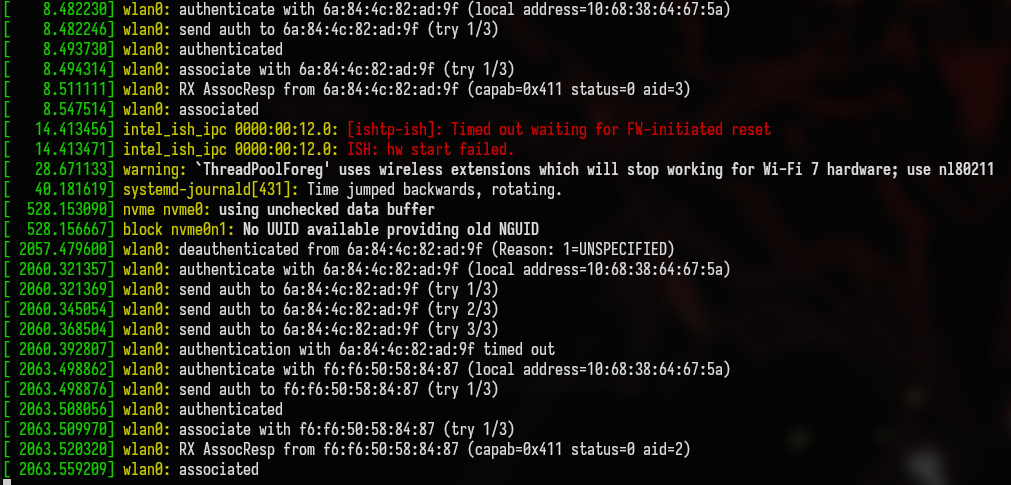 Figure: Kernel Log
 Figure: WiFi Working
Compiling Bluetooth Driver
Now Wifi is working, and to get bluetooth working you need to clone a different branch of same repo
1
2
3
4
5
git clone https://github.com/hmtheboy154/mt7902 -b bluetooth_backport btusb_mt7902
cd btusb_mt7902
make
sudo make install
sudo make install_fw
Now before rebooting or using modprobe make sure to blacklist the default modules btusb and btmtk and autoload the mt7902.
1
2
3
echo -e "blacklist btusb\nblacklist btmtk" | sudo tee /etc/modprobe.d/block-default-bt.conf
echo "btusb_mt7902" | sudo tee /etc/modules-load.d/mt7902-bt.conf
sudo modprobe btusb_mt7902
 Figure: Bluetooth loads successfully
 Figure: Bluetooth Working
Use DKMS(Crucial)
Because you compiled these drivers manually, they are tied to your current kernel version. The next time pacman or dnf updates your kernel, your WiFi and Bluetooth will instantly break. Dynamic Kernel Module Support (DKMS) solves this. It runs in the background and automatically recompiles your drivers whenever a new kernel is installed.
DKMS needs clean source code to work with. Navigate back to your downloaded folders and clear out the old compiled objects.
1
2
3
4
5
cd /path/to/mt7902
make clean

cd /path/to/btusb_mt7902
make clean
Now register the modules with dkms
1
2
3
4
5
cd /path/to/mt7902
sudo dkms add .

cd /path/to/btusb_mt7902
sudo dkms add .
Because we already installed manual .ko files in previous steps, DKMS will throw an error and refuse to overwrite them. We bypass this by forcing the installation(Run one-by-one):
1
2
3
sudo dkms autoinstall
sudo dkms install mt7902e/git --force
sudo dkms install btusb_mt7902/git --force
and check the status with dkms status, the output will likely show mt7902e/git and btusb_mt7902/git as installed, and you are done now even if you update your system it won’t break anymore.
What if Official Builds arrive on Linux 7.0
Eventually, mainline Linux will officially support the MT7902. When that update inevitably lands on your machine, the custom configuration will interfere with the official drivers. To have a smooth transition to native support in future you just need to remove the dkms overrides and delete the bluetooth blacklist files.
1
2
3
4
sudo dkms remove mt7902e/git --all
sudo dkms remove btusb_mt7902/git --all
sudo rm /etc/modprobe.d/block-default-bt.conf
sudo rm /etc/modules-load.d/mt7902-bt.conf